Summary: This article provides direct access to macOS Sequoia full installer files, including the DMG and ISO formats. It also explains how iBoysoft DiskGeeker can be used to download macOS Sequoia or create a bootable USB installer.
This article is written in Indian English and intended for readers in India.
Note: macOS Tahoe has now succeeded macOS Sequoia as the latest macOS release. If your Mac hardware supports macOS Tahoe, you may consider upgrading by using the macOS Tahoe full installer, following the instructions in the Mac Operating System Download and Install Guide.
macOS Sequoia was released on 16 September 2024 and represents the 21st major version of Apple's Mac operating system, following macOS Sonoma.
One of the key introductions in macOS Sequoia is Apple Intelligence, which marks Apple's first large-scale integration of artificial intelligence into macOS. This system combines on-device processing with cloud-based computation to support features such as improved Siri functionality, AI-powered writing assistance, image generation, and ChatGPT integration.
If you plan to install macOS Sequoia, you must first download the required files. Depending on your usage scenario, this may involve downloading the macOS Sequoia installer, the DMG file, or the ISO image.
Note: If you want to download older Mac operating system versions, refer to: How to Download Old Mac OS without App Store?
For other macOS installers, visit: Mac OS Free Download Full Version.
| Download macOS Sequoia DMG | suitable for installing on a Mac or creating a Sequoia bootable USB |
| Download macOS Sequoia ISO | required for installing macOS Sequoia on Windows virtual machines (macOS Download for Windows) |
| Download macOS Sequoia installer | used for Mac installation or USB installer creation |
Tips: If you want to download macOS Sequoia more efficiently or create a bootable USB installer without using complex Terminal commands, you can use iBoysoft DiskGeeker.
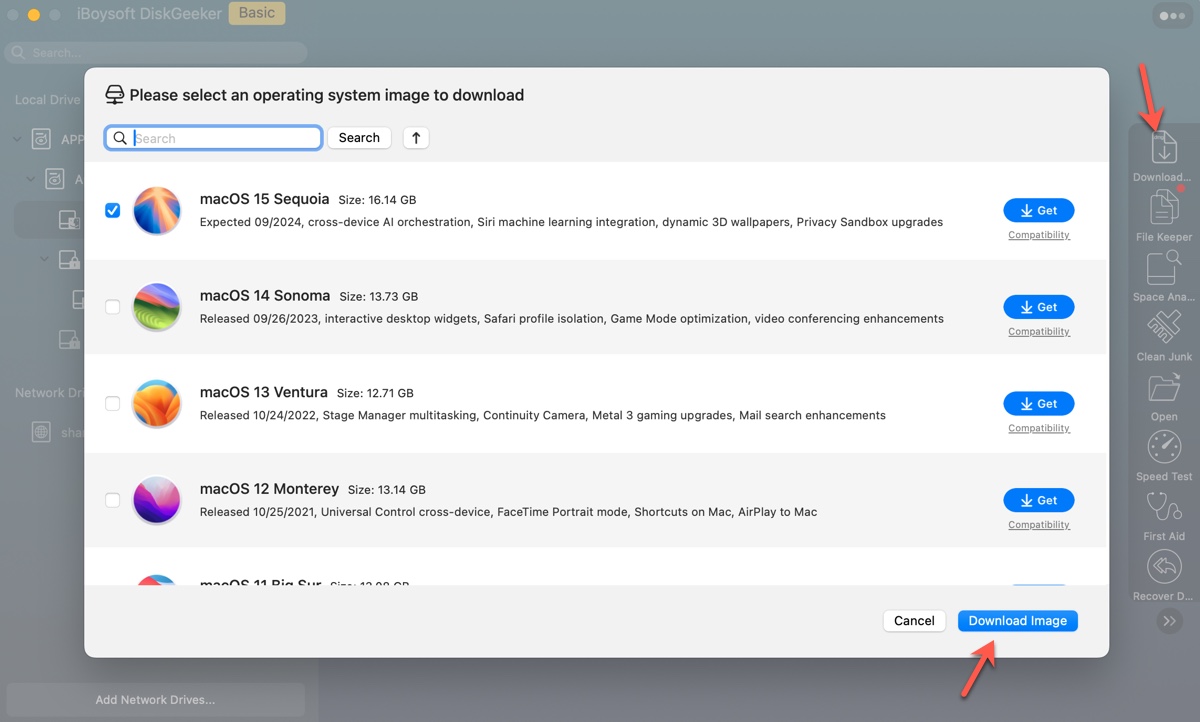
To download macOS Sequoia, select an internal partition and click Download Image.
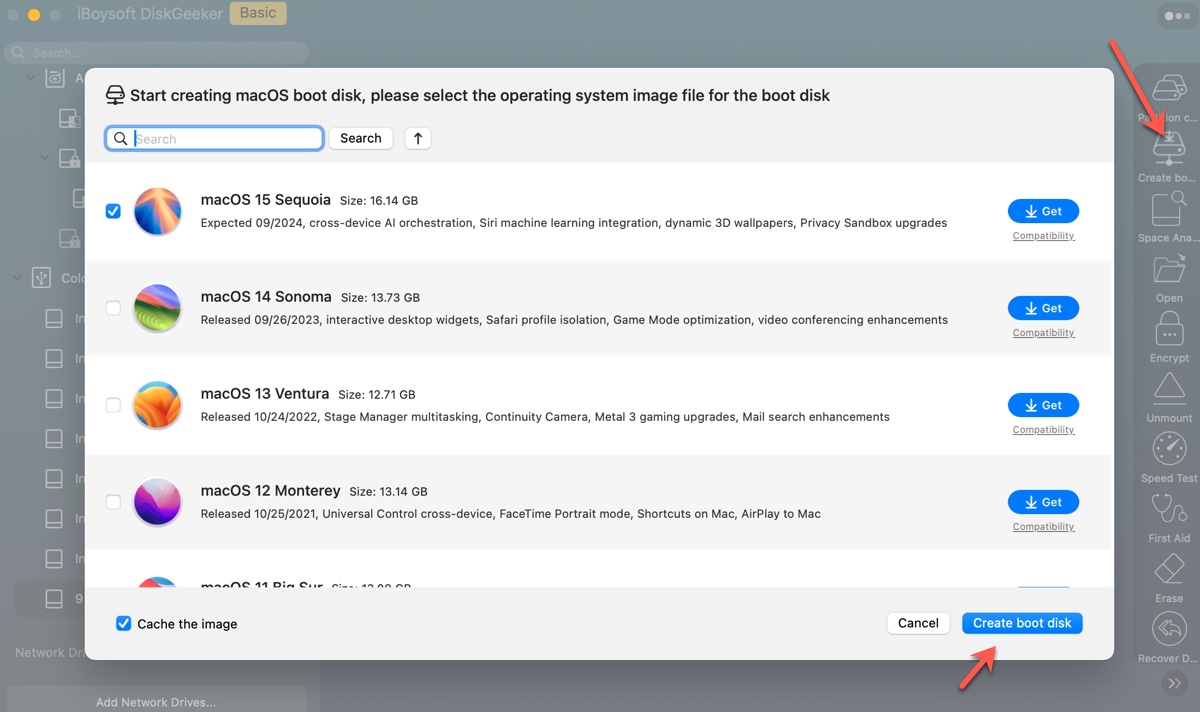
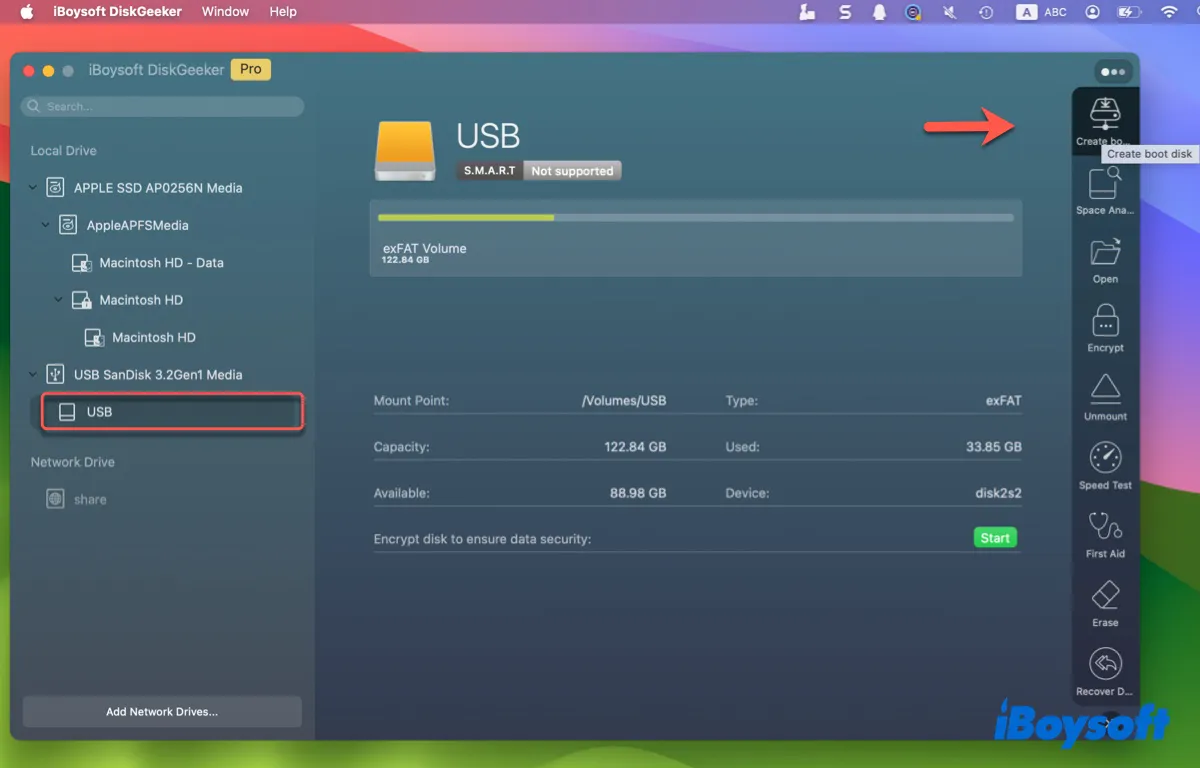
To create a Sequoia bootable installer, connect a USB drive, select it from the list, and click Create boot disk.
The application also allows you to continue downloading other macOS installers if needed.
For information on known issues and fixes in the latest release,, see: macOS Sequoia 15.7.3 Issues, Bugs, & Fixes
How to download macOS Sequoia ISO file?
A macOS Sequoia ISO file is a disk image in ISO format that contains installation files, boot components, and system utilities. It is commonly used to install macOS Sequoia on virtual machines such as VirtualBox, VMware, or Parallels Desktop running on Windows systems.
To create a reliable macOS Sequoia 15.7 ISO file, follow these steps:
- Download, install, and open iBoysoft DiskGeeker.
-
Select an internal volume and click Download Image.
-
Choose macOS Sequoia and click Get.
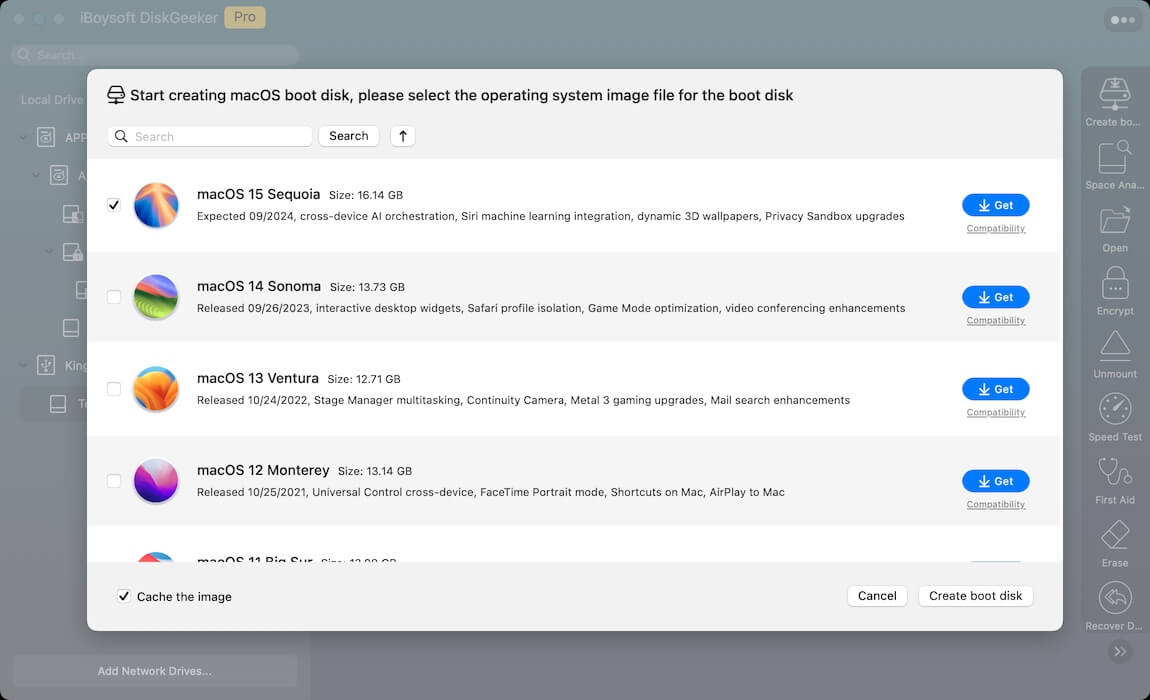
- Select a location to save the macOS Sequoia DMG file.
- After the download completes, open Terminal.
-
Run the following commands in order to convert the DMG file to ISO format:hdiutil convert sequoia_dmg_path -format UDTO -o ~/Desktop/Sequoia.cdrTo execute this command, type hdiutil convert in Terminal, leave a space, drag and drop the Sequoia DMG file to Terminal to get its file path, leave a space, then copy the rest of the command to Terminal and hit Enter.
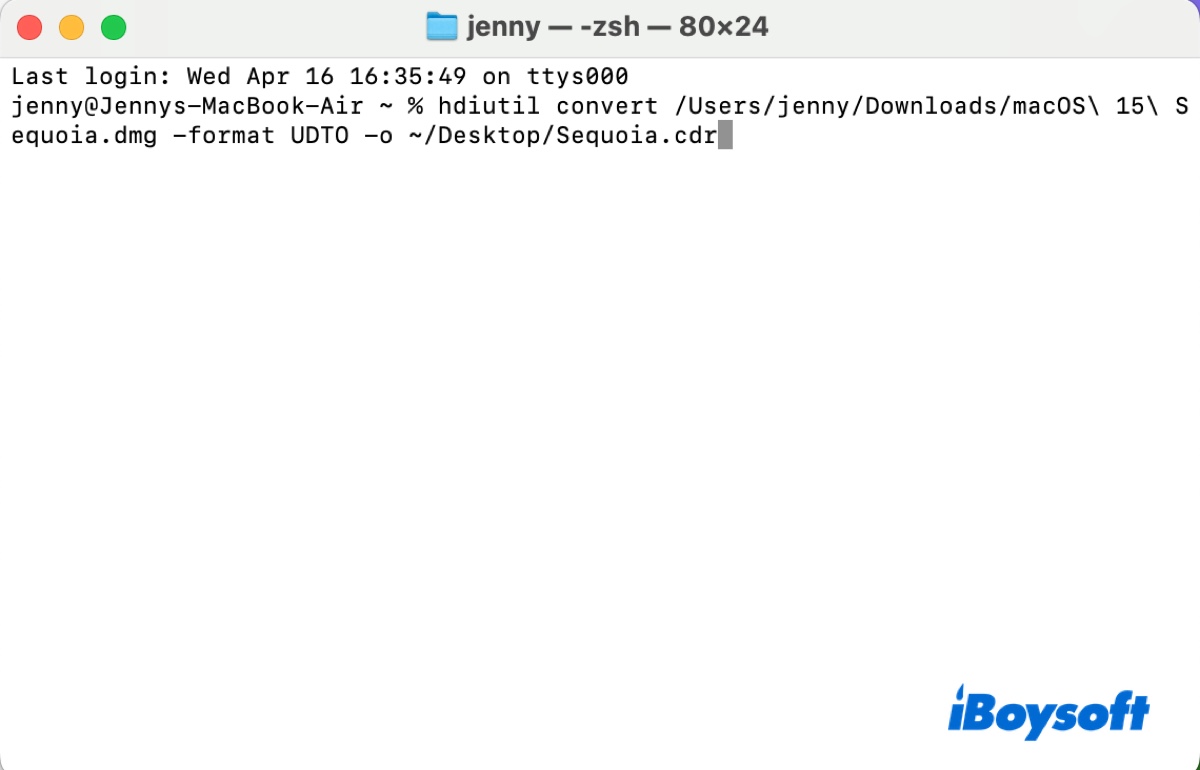 mv ~/Desktop/Sequoia.cdr ~/Desktop/Sequoia.iso
- After the process finishes, the macOS Sequoia ISO file will be available on your desktop.
Alternatively, you may download the macOS Sequoia ISO file directly for use with VirtualBox or VMware from the provided links.
Download macOS Sequoia ISO (Credit: Metaperso)
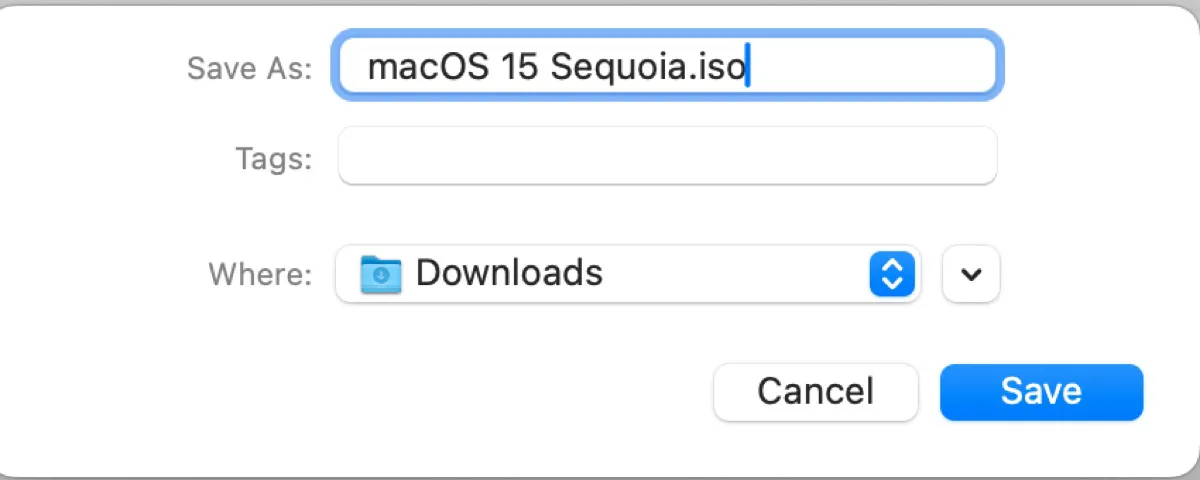
Share to help others download macOS Sequoia ISO on Windows!
How to download macOS Sequoia DMG file?
A macOS Sequoia DMG file is a disk image that contains the installation files for macOS Sequoia. When mounted on a Mac, it functions like a virtual disk and allows access to the installer.
DMG files are widely used for distributing macOS versions and can also be used to create bootable USB installers or to manually run the installer.
To download the latest macOS Sequoia DMG file, follow these steps:
Step 1: Download and install iBoysoft DiskGeeker.
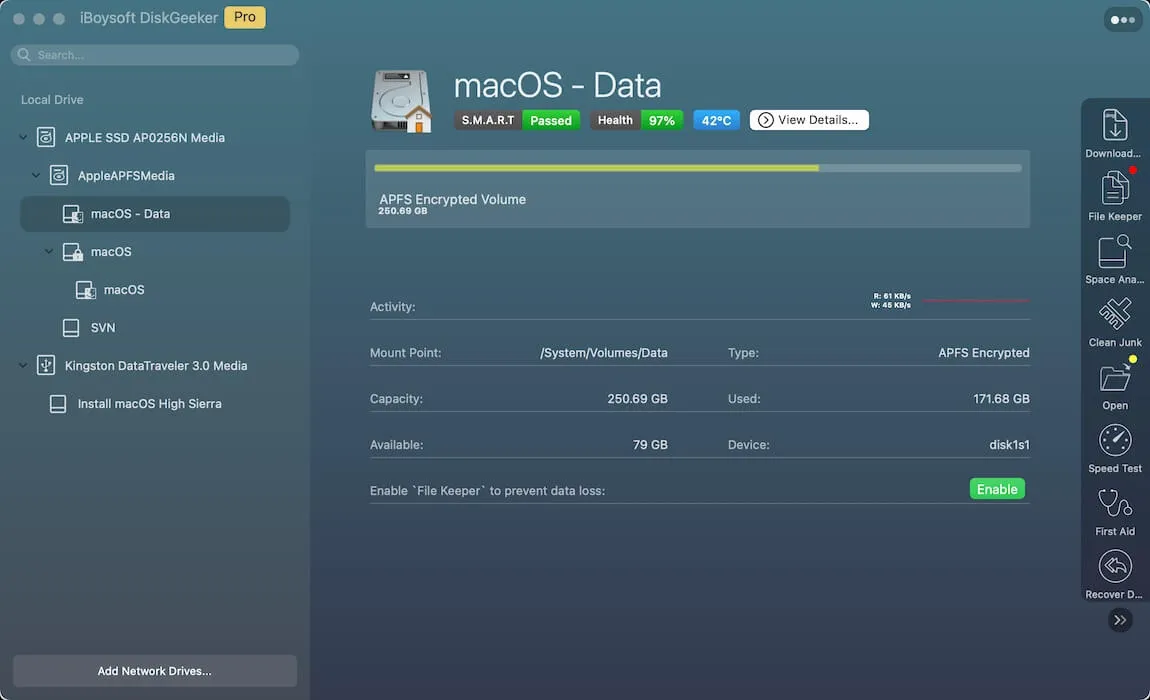
Step 2: Select your Mac's data volume (for example, Macintosh HD – Data) and click Download Image.
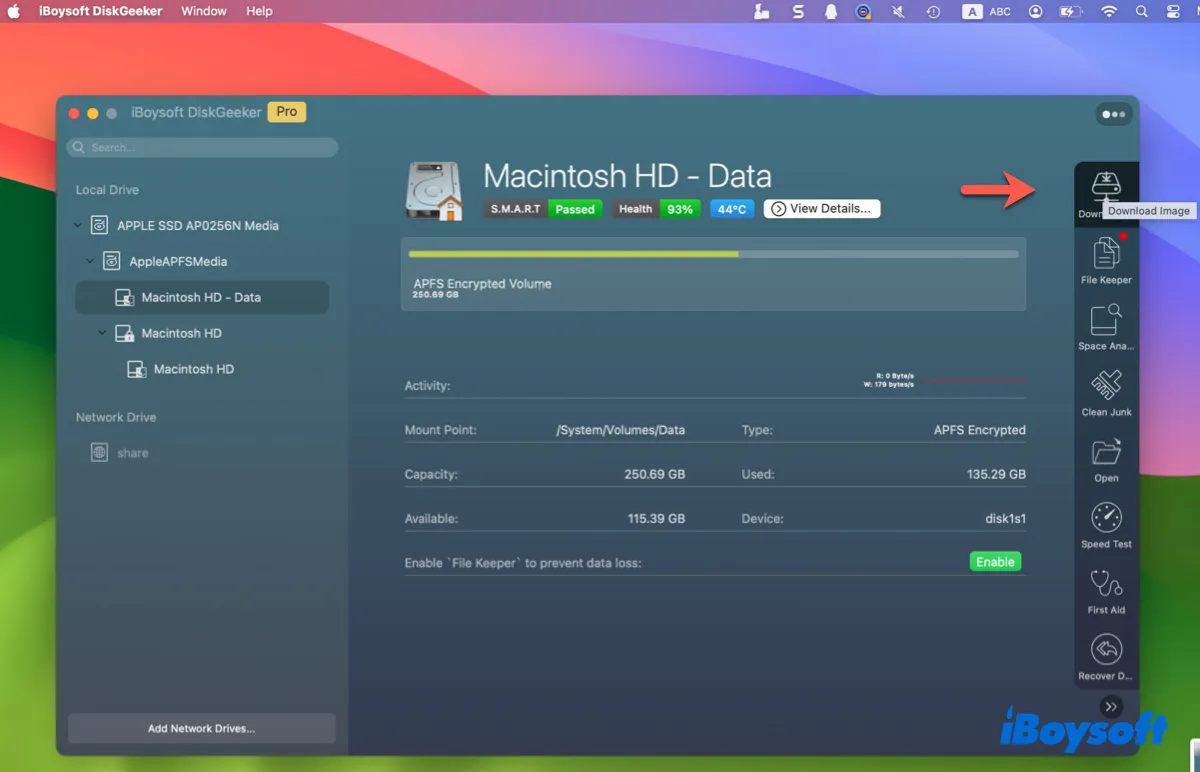
Step 3: Click Get next to macOS Sequoia, choose a save location, and click Save.
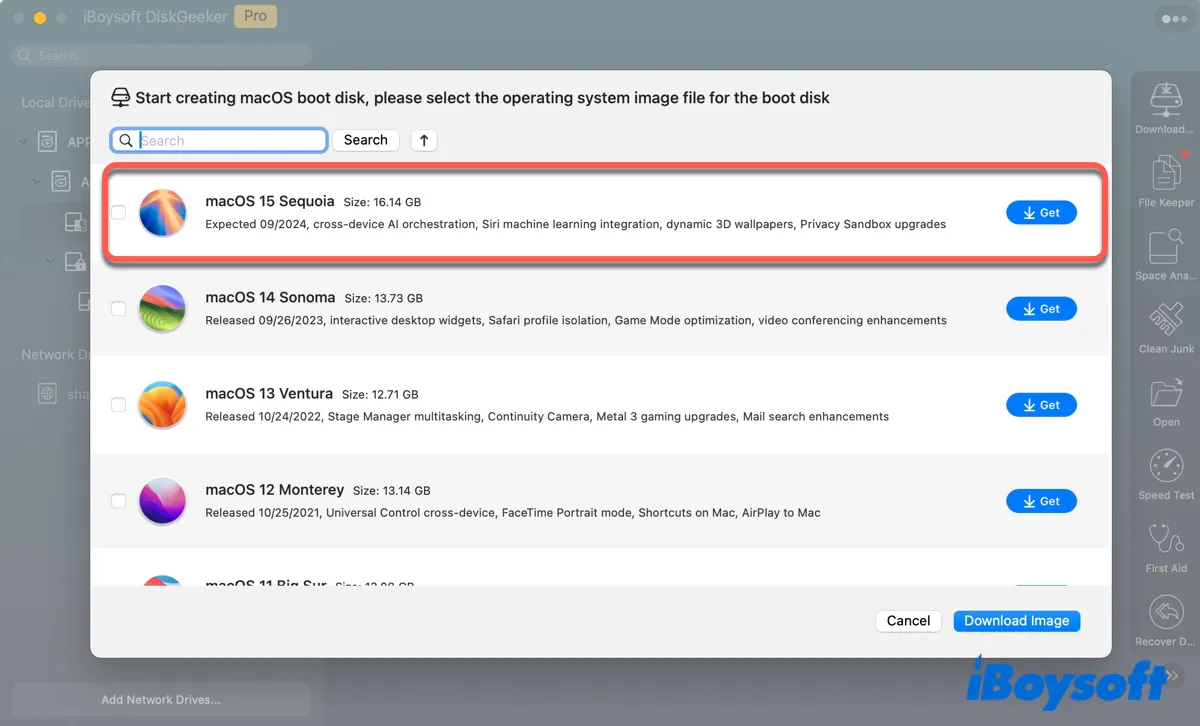
Tips: This tool also supports downloading DMG files for macOS Sonoma, Ventura, Monterey, Big Sur, Catalina, Mojave, and High Sierra.
If you prefer to download the macOS Sequoia DMG file directly, links are available via Google Drive or Media Fire.
How to create a bootable macOS Sequoia installer?
If your goal is to create a bootable macOS Sequoia installer, you can do so using the following method:
- Install and open iBoysoft DiskGeeker.
- Connect an external USB drive with at least 32 GB of storage space and ensure all data on it is backed up.
-
In iBoysoft DiskGeeker, select the external drive and click Create boot disk.
-
Choose macOS 15 Sequoia and click Create boot disk to begin downloading the DMG installer. (If the DMG file has already been downloaded, select Browse images to upload the existing Sequoia.dmg file.)
- Click OK to start creating the bootable USB installer.
If you prefer using Terminal commands, refer to: How to Create Sequoia USB Installer?
Share this app to benefit more users!
How to download macOS Sequoia installer (APP/PKG)?
There are three official methods to download the full macOS Sequoia installer.
Download macOS Sequoia from the Mac App Store
To download macOS Sequoia from the App Store, your Mac must be compatible with this version. Supported models include:
- MacBook Air (2020 and later)
- MacBook Pro (2018 and later)
- iMac (2019 and later)
- Mac mini (2018 and later)
- iMac Pro (2017)
- Mac Pro (2019 and later)
- Mac Studio (2022 and later)
Open the Mac App Store, search for macOS Sequoia, select the correct result, and click View > Get.
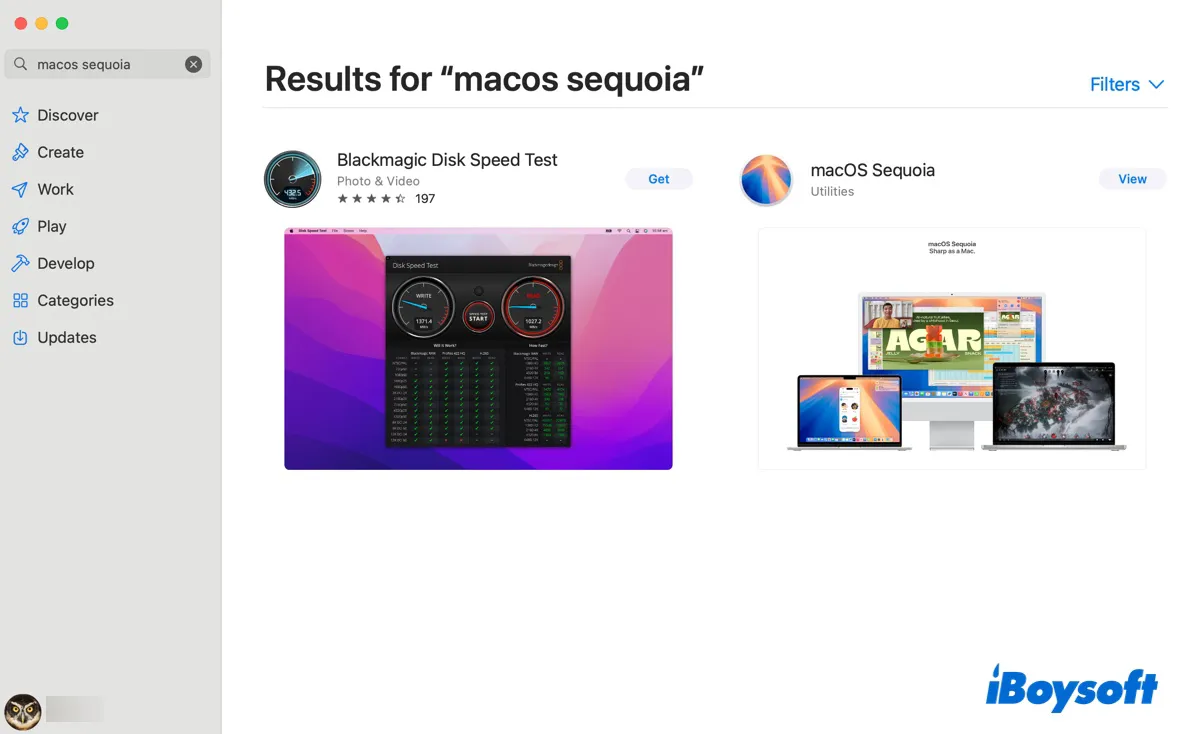
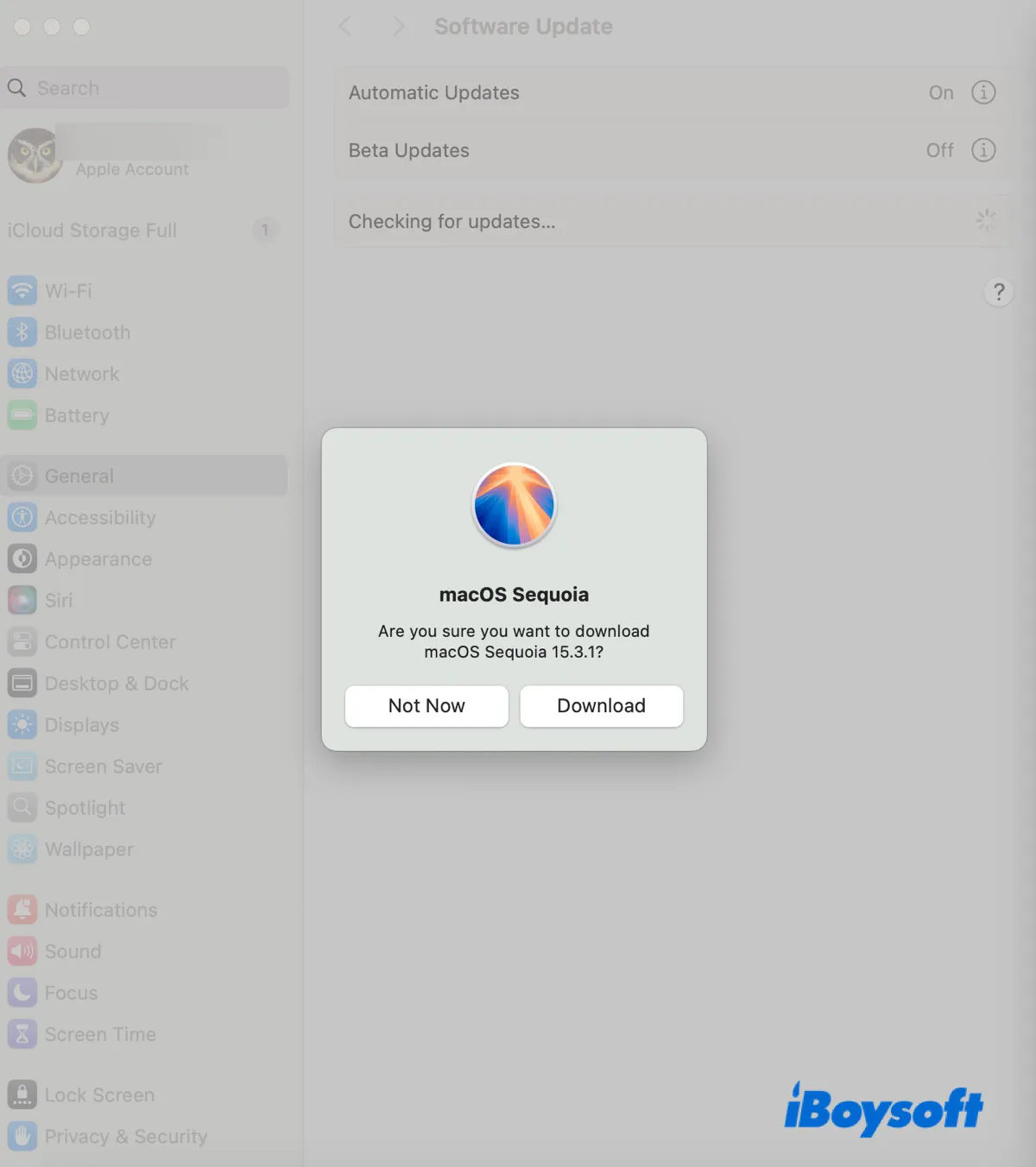
This will open the Software Update window and begin downloading the Install macOS Sequoia.app file to the Applications folder.
Download macOS Sequoia from Apple's server
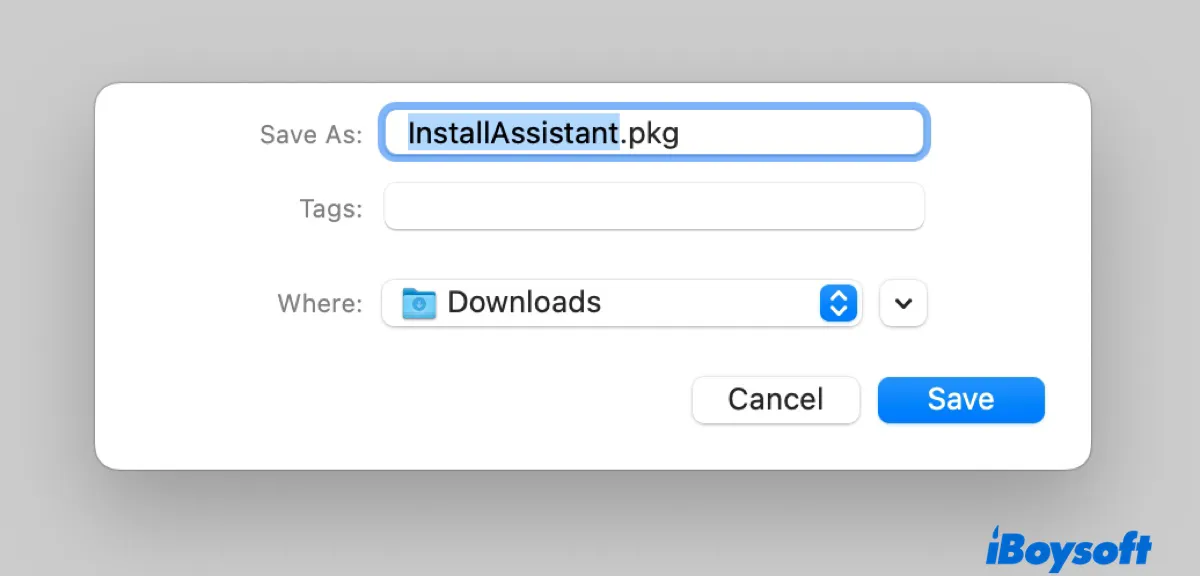
You can also download the macOS Sequoia installer directly from Apple's servers. Multiple versions are available depending on availability and compatibility.
| macOS Sequoia Full Installer Versions | Build | App | Availability | Date |
| macOS Sequoia 15.7.3 download | 24G419 | / | YES | 2025/12/12 |
| macOS Sequoia 15.7.2 download | 24G325 | / | YES | 2025/11/3 |
| macOS Sequoia 15.7.1 download | 24G231 | / | YES | 2025/9/29 |
| macOS Sequoia 15.7 download | 24G222 | / | YES | 2025/9/15 |
| macOS Sequoia 15.6.1 download | 24G90 | / | YES | 2025/8/20 |
| macOS Sequoia 15.6 download | 24G84 | / | YES | 2025/7/29 |
| macOS Sequoia 15.5 download | 24F74 | / | YES | 2025/5/12 |
| macOS Sequoia 15.4.1 download | 24E263 | / | YES | 2025/4/16 |
| macOS Sequoia 15.4 download | 24E248 | / | YES | 2025/3/31 |
| macOS Sequoia 15.3.2 download | 24D81 | / | YES | 2025/3/11 |
| macOS Sequoia 15.3.2 download (M4 Air & Studio) | 24D2082 | M4 Air & M4 Studio | YES | 2025/3/11 |
| macOS Sequoia 15.3.1 download | 24D70 | / | YES | 2025/2/10 |
| macOS Sequoia 15.3 download | 24D60 | / | YES | 2025/1/27 |
| macOS Sequoia 15.2 download | 24c101 | 20.2.05 | YES | 2024/12/11 |
| macOS Sequoia 15.1.1 download | 24B91 | / | NO | 2024/11/19 |
| macOS Sequoia 15.1.1 download (M4) | 24B2091 | M4 exclusive | NO | 2024/11/19 |
| macOS Sequoia 15.1 download | 24B83 | 20.1.01 | NO | 2024/10/28 |
| macOS Sequoia 15.1 download (M4) | 24B2083 | M4 exclusive | NO | 2024/10/30 |
| macOS Sequoia 15.0.1 download | 24A348 | 20.0.05 | NO | 2024/10/04 |
| macOS Sequoia 15.0 download | 24A335 | 20.0.03 | NO | 2024/9/16 |
Download macOS Sequoia from Terminal
On a compatible Mac, you can download macOS Sequoia using Terminal:
- Open Terminal.
-
Check available macOS installers:softwareupdate --fetch-full-installer --list-full-install
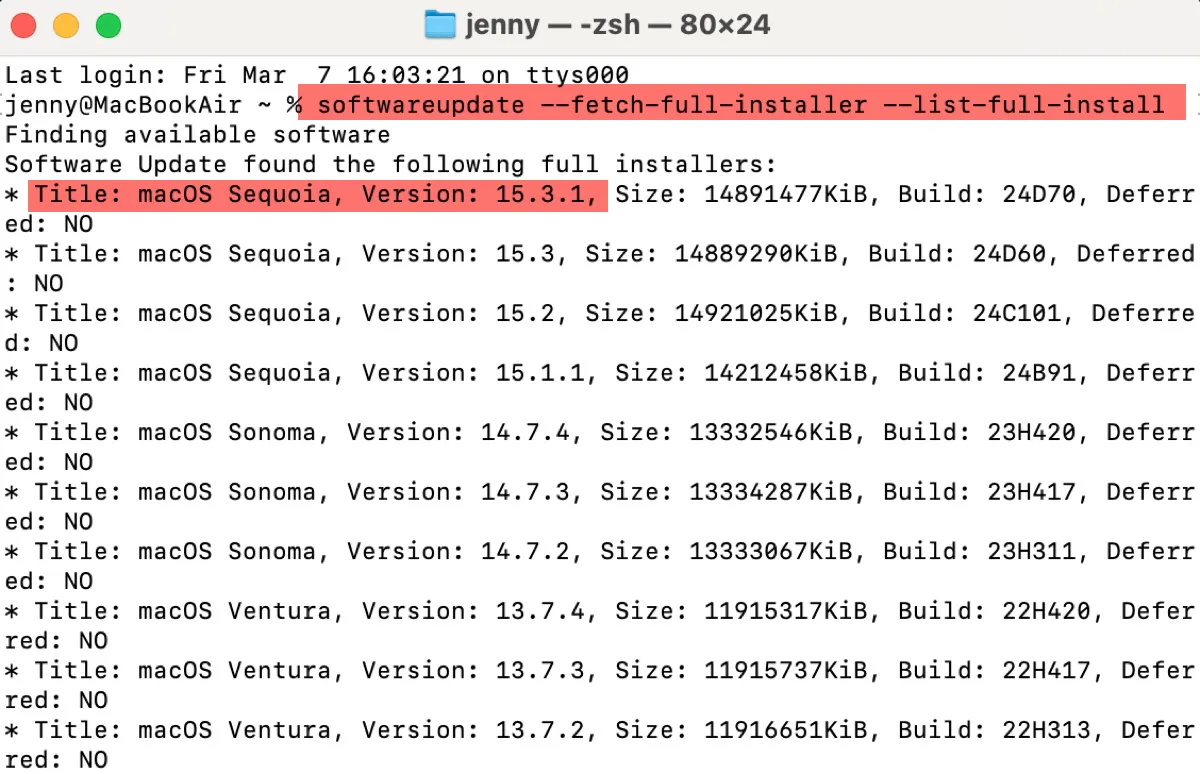
- Note that the latest version of macOS Sequoia.
- Replace "version" in the command below to download the newest macOS Sequoia version.softwareupdate --fetch-full-installer --full-installer-version version
For example, softwareupdate --fetch-full-installer --full-installer-version 15.7.2
Find the information useful? Share it!
What if you can't download macOS Sequoia?
If the macOS Sequoia download is slow or stops partway through, insufficient free storage space is often the cause.
In such cases, you can use iBoysoft DiskGeeker to clean up your Mac. The Space Analyze feature helps identify large files by sorting them by size and permanently remove them.
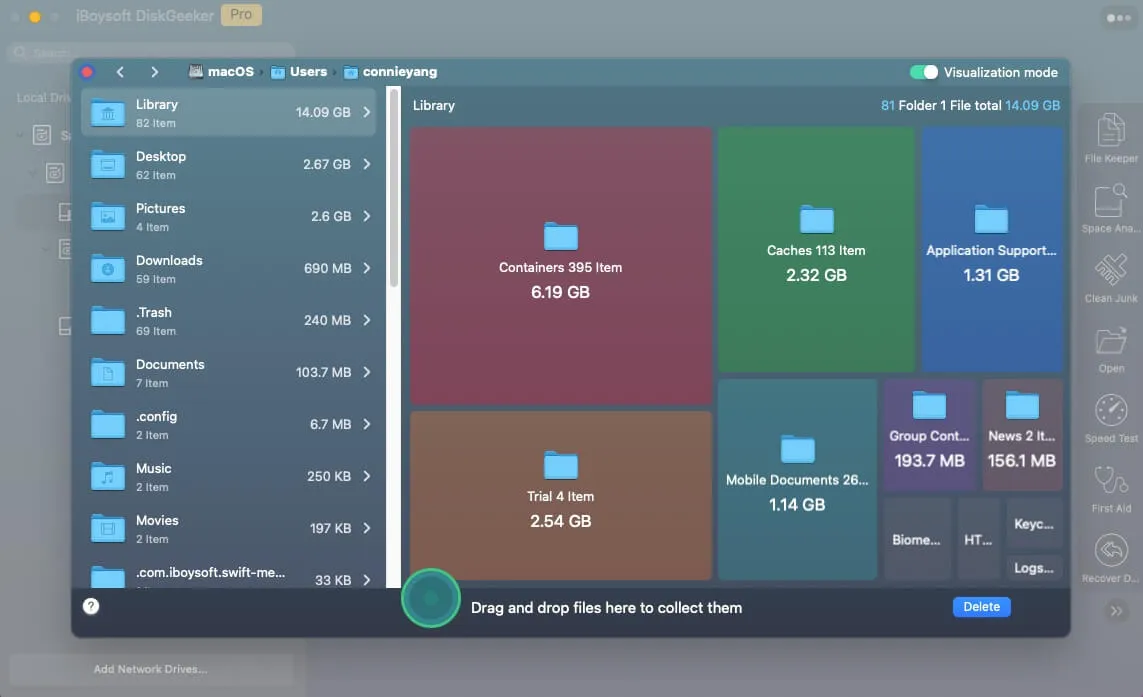
Clean Junk scans for and removes unnecessary files such as caches, logs, and preference data.
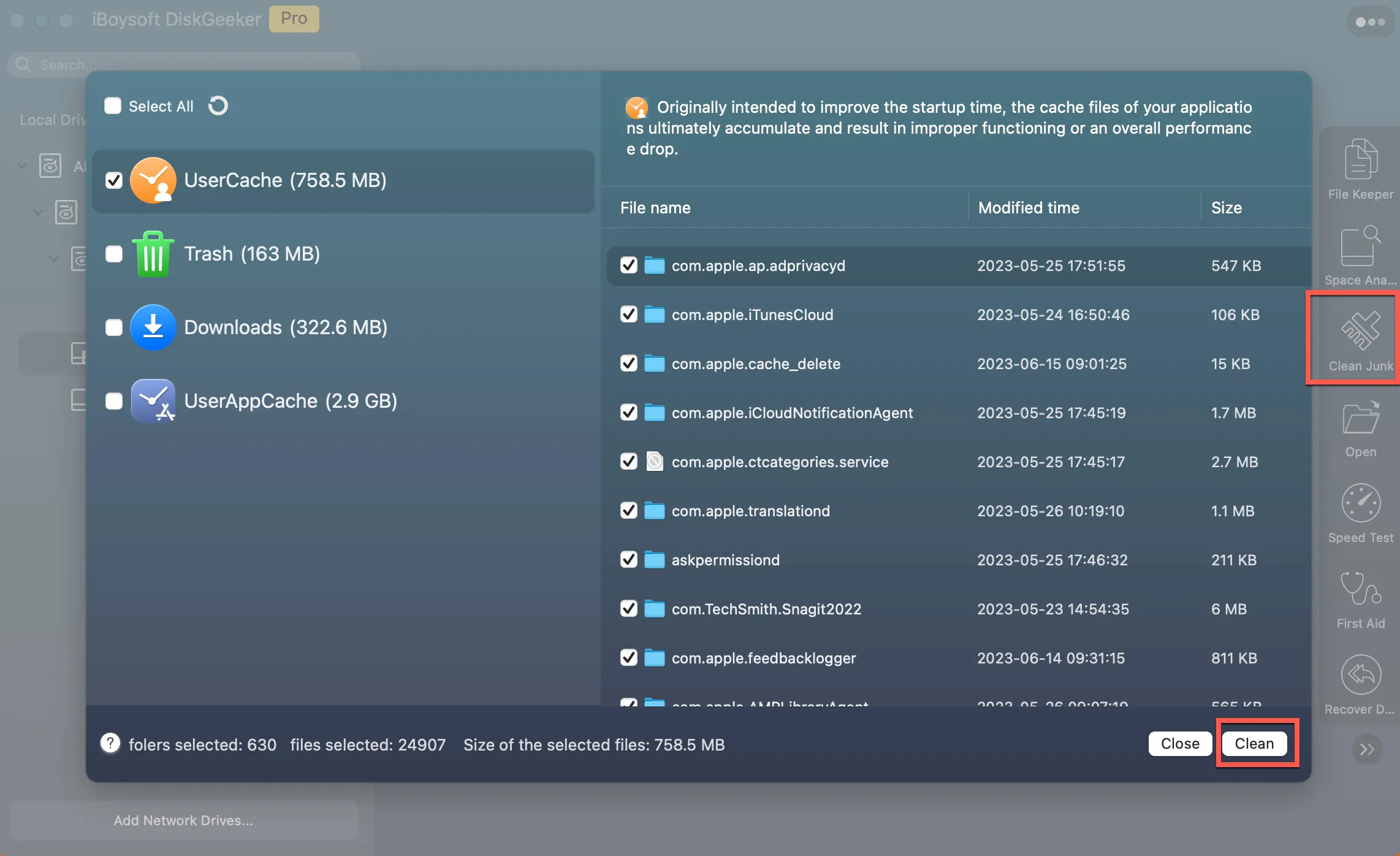
After freeing up sufficient storage space, you should be able to download the macOS Sequoia installer successfully.
Click the button below to share the ways to get macOS Sequoia DMG, ISO, or installer download!