This article is written in Indian English and intended for readers in India.
Normally, macOS Catalina (10.15) can be searched via the Mac App Store. However, if your Mac is running macOS Big Sur or later, or the hardware is incompatible, it will not appear in search results.
This guide provides direct download links for the macOS Catalina full installer, Catalina ISO, and Catalina DMG. It also explains how to create a bootable macOS Catalina USB installer, suitable for downgrading your Mac or installing Catalina on unsupported Macs. (For the latest release, see: macOS Tahoe Download)
Note: For faster downloading, iBoysoft DiskGeeker retrieves the Catalina DMG file at a significantly higher speed than standard methods.
Additionally, this tool enables you to create a bootable macOS Catalina USB installer on unsupported Macs without using Terminal.
Create a bootable Catalina installer with iBoysoft DiskGeeker
1. Download, install and open iBoysoft DiskGeeker on your Mac, then connect a blank USB drive.
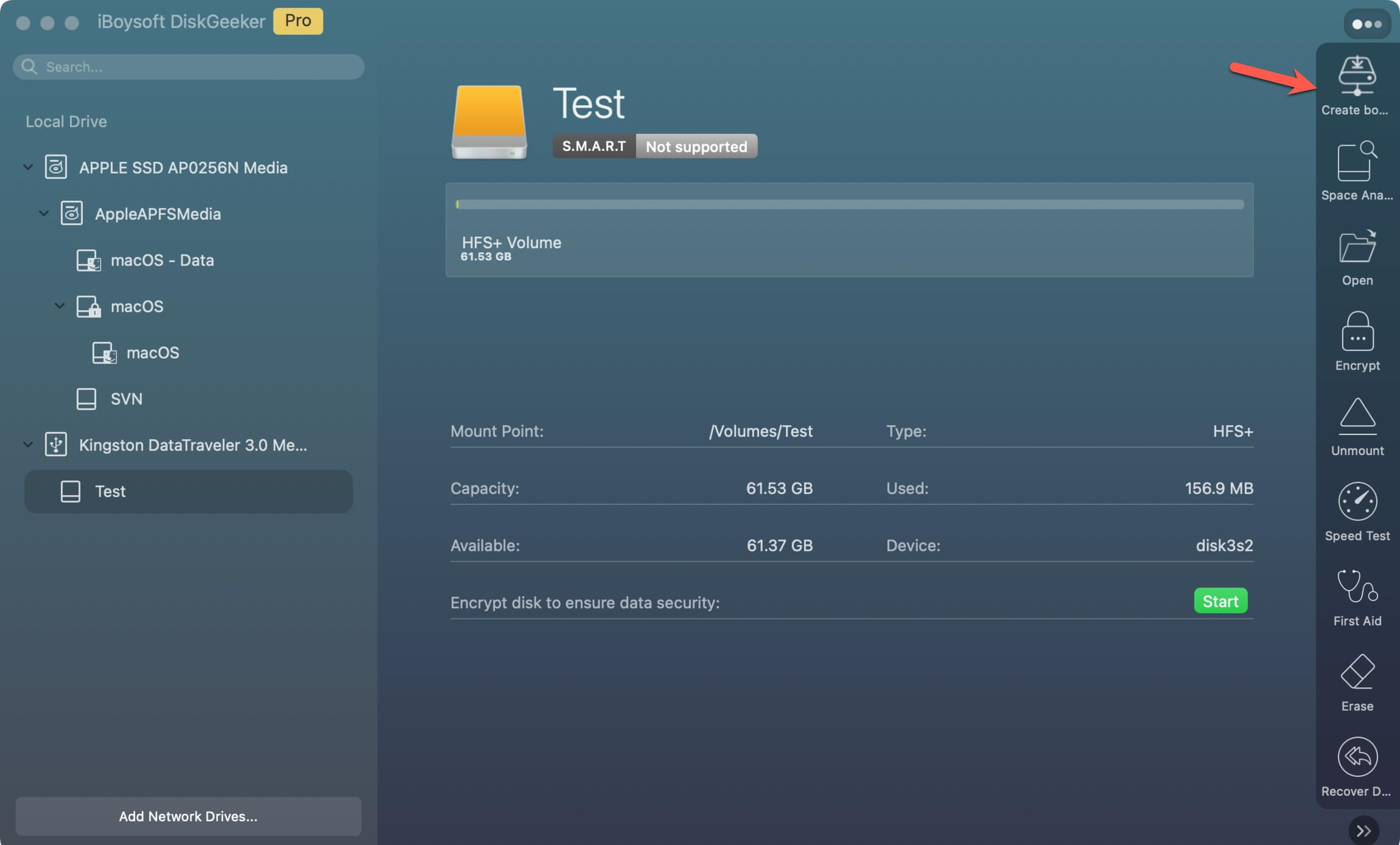
2. Select a volume on the USB drive and click Create boot disk > Continue.
3. Select macOS Catalina and click Create boot disk > OK to download the Catalina DMG installer first.
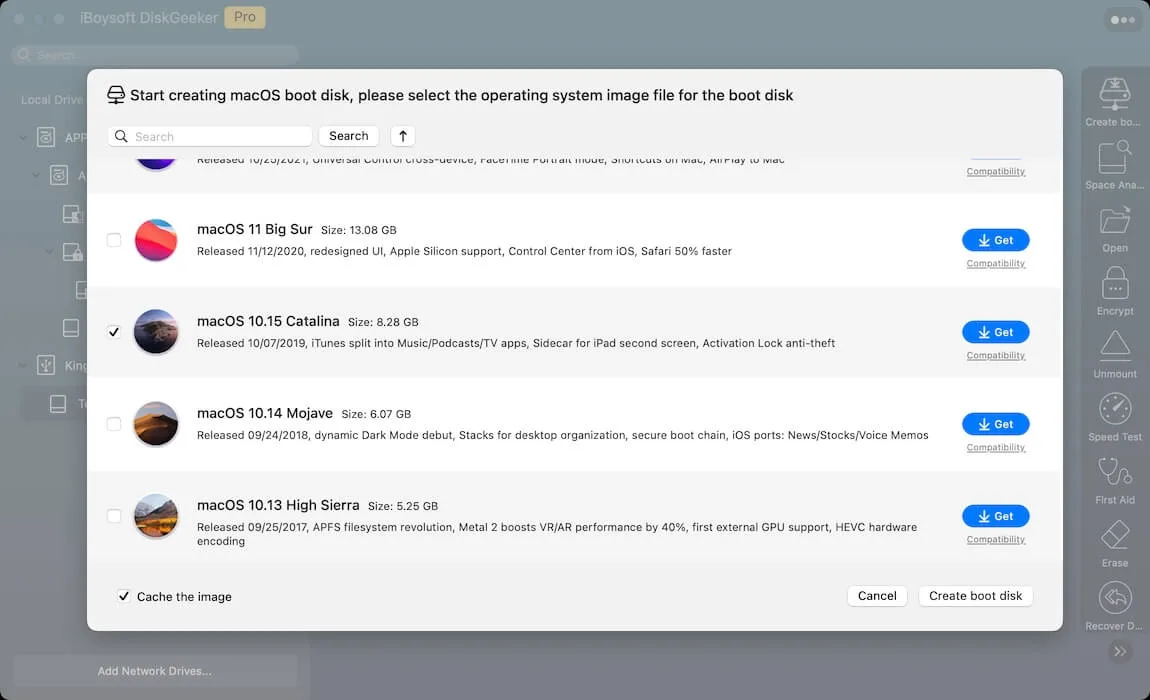
4. When prompted, confirm whether you want to create a bootable installer. If cancelled, the downloaded DMG will remain in the Downloads folder.
macOS Catalina full installer vs. DMG vs. ISO (Selecting the appropriate format)
Before proceeding with downloading, understanding the differences between the formats can be helpful.
macOS full installer: Official .app installer, usually downloaded from the App Store, available only for supported Macs.
macOS DMG file: Disk image format often used to create bootable installers on compatible Macs.
macOS ISO file: Image format commonly used for virtual machines or creating bootable media on Windows or unsupported Macs.
Download macOS Catalina from the Mac App Store
If your Mac is compatible, download macOS Catalina directly from the App Store using the link below. Unsupported Macs will display "Update not found".
↓ macOS Catalina download (8.26 GB)
Macs compatible with macOS Catalina
- iMac Pro (2017 onwards)
- MacBook (2015 onwards)
- Mac Pro (Late 2013 onwards)
- MacBook Air (Mid 2012 onwards)
- MacBook Pro (Mid 2012 onwards)
- iMac (Late 2012 onwards)
- Mac Mini (Late 2012 onwards)
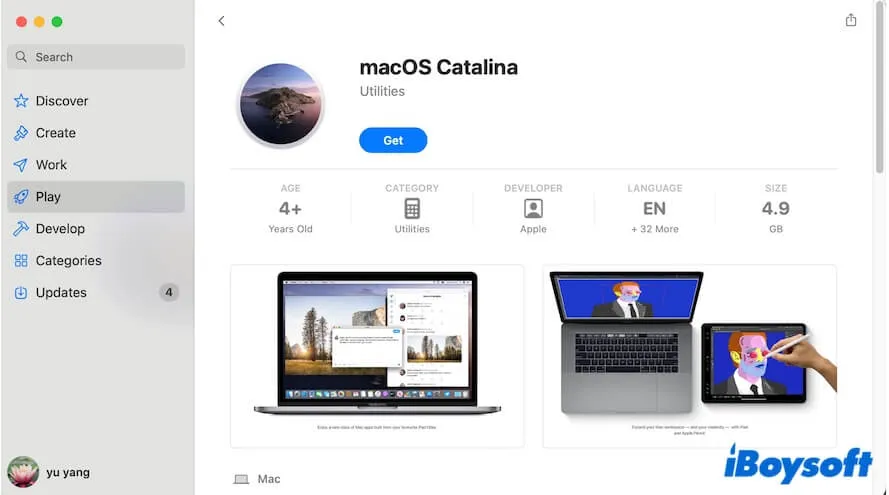
The download may take a few hours. During this period, ensure your Mac is connected to power and the display stays active.
After download, the installer opens automatically. If you do not wish to install Catalina immediately, select Install macOS Catalina > Quit Install macOS from the menu bar. You can later find the installer in the Applications folder.
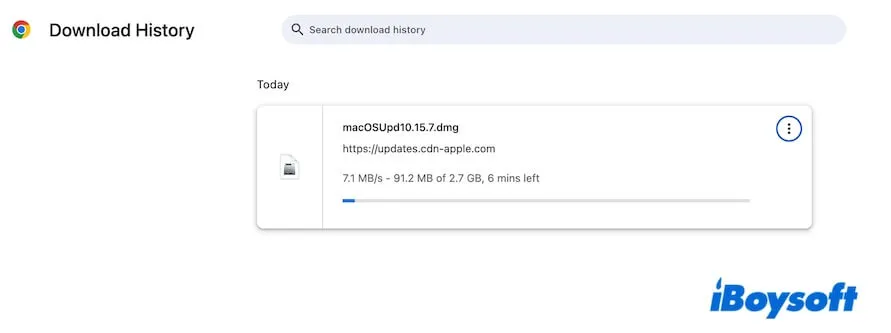
Download macOS Catalina 10.15.7 update
The 10.15.7 update fixes Wi-Fi auto-connect issues, iCloud Drive sync problems, and graphics issues on the 27-inch iMac (Retina 5K, 2020) with Radeon Pro 5700 X.
If you are running macOS 10.15.6, download the 10.15.7 update directly, which is faster than downloading the full installer.
↓ macOS Catalina 10.15.7 update download (2.86 GB)
Download macOS Catalina DMG file
If the App Store method is not working, or you need Catalina on a Windows computer, download the DMG file below.
↓ macOS Catalina DMG download (10.15.7, 7.21GB, from MediaFire)
Alternatively, follow: How to Create a macOS Catalina 10.15 DMG File.
The DMG is essential for installing Catalina on a Windows system or unsupported Mac, or for use in VirtualBox or VMware. It can also be used to prepare a bootable USB or external drive.
Download macOS Catalina ISO file
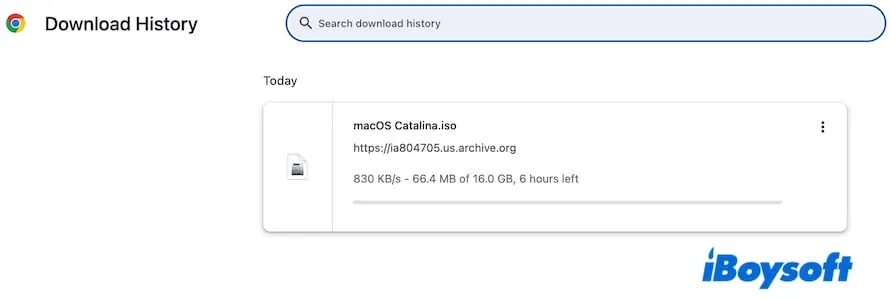
The macOS Catalina ISO file serves a similar purpose to the DMG, commonly used for virtual machines and creating bootable installation media.
↓ macOS Catalina ISO download (10.15.7, 16GB, from Internet Archive)
Create macOS Catalina USB installer
After downloading the installer, you can create a USB installer, useful for downgrading from macOS Sonoma to Catalina.
The traditional method requires Terminal commands and can be complex. iBoysoft DiskGeeker provides a simplified way to create a Catalina bootable USB in just a few clicks.
Traditional Terminal method
Preparation:
- USB drive formatted as Mac OS Extended, minimum 32 GB
- Intel-based Mac (Catalina supports only Intel processors)
Steps:
- Connect the USB drive to the Intel Mac.
- Open Terminal from Launchpad > Other.
- Enter the following command, replacing MyVolume with your USB drive name: sudo /Applications/Install\ macOS\ Catalina.app/Contents/Resources/createinstallmedia --volume /Volumes/MyVolume
- Enter admin password and press Enter.
- Confirm erasing the USB by typing Y and press Enter.
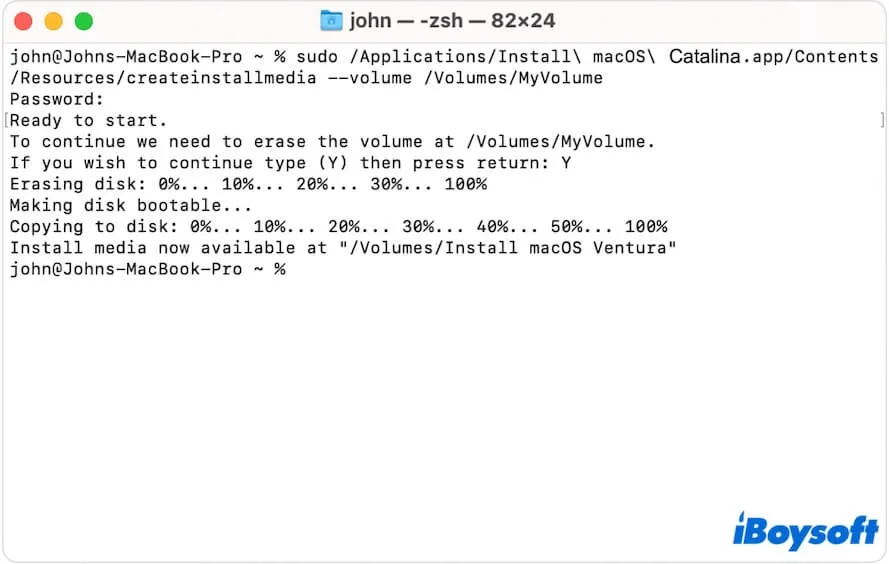
- Wait until the process completes, keeping the Mac powered on and awake.
For booting from the USB, see: How to Boot Mac from a USB.
If the installer does not boot, see: How to fix the USB Catalina installer not bootable.
Why macOS Catalina cannot be downloaded or installed
Several factors may prevent successful download or installation.
1. Incompatible Mac
Mid-2012 or earlier Macs do not support Catalina. The App Store will display "Update not found". Use DMG or ISO files from above instead.
2. Apple Silicon Macs
Catalina is designed exclusively for Intel Macs. Big Sur is the first release for Apple Silicon.
3. Insufficient storage
Low storage can prevent download. Removing unnecessary files improves success rate. iBoysoft DiskGeeker helps clean caches, system logs, user logs, and trash quickly.
Steps:
- Install and launch iBoysoft DiskGeeker.
- Choose the listed junk files.
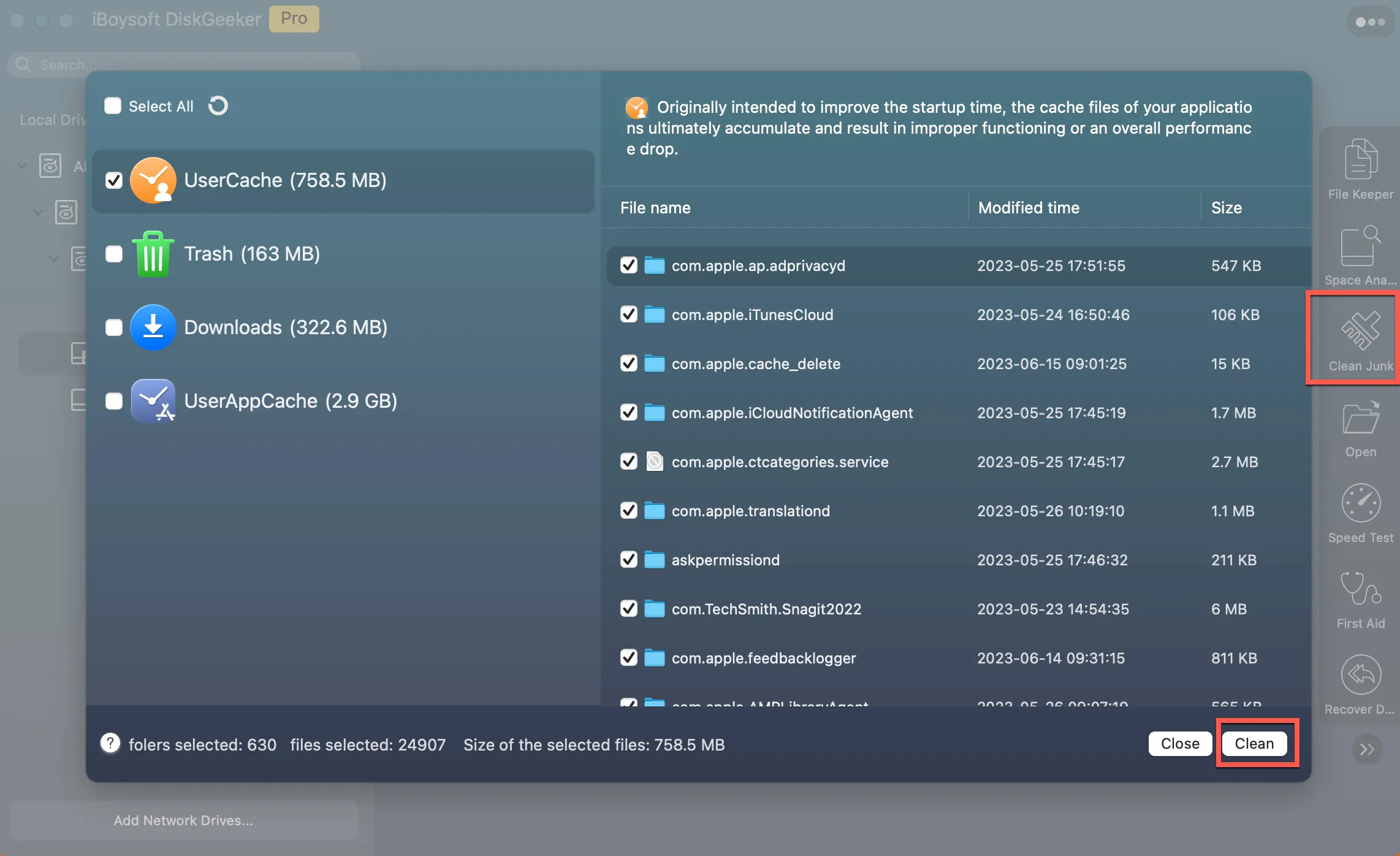
- Select "Clean."
4. Network issues
A poor or unstable connection may disrupt the download. Switch Wi-Fi or check connectivity.
Other installation failures may result from:
- Not enough storage
- Incompatible Mac
- Power interruptions
- Outdated macOS minor versions
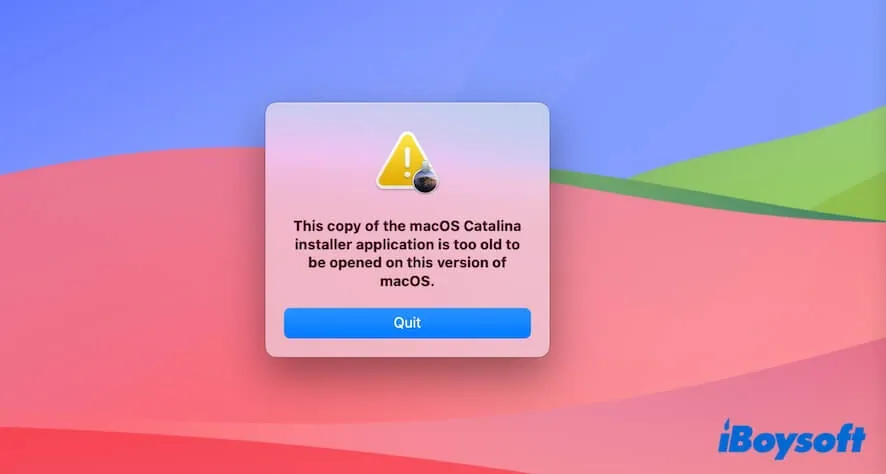
- Running macOS Big Sur or later
FAQs about macOS Catalina download
- QHow do I install Catalina on an old Mac?
-
A
Use OpenCore Legacy Patcher to run Catalina on unsupported Macs.
1. Download OpenCore Legacy Patcher from its official website.
2. Prepare a USB drive formatted as Mac OS Extended (Journaled).
3. Use the tool to create a bootable Catalina USB.
4. Boot the unsupported Mac from USB.
5. Install OpenCore Legacy Patcher when prompted, then run Catalina.
- QHow to download macOS Catalina?
-
A
If your Mac supports it, download from the App Store by searching and clicking Get.
If unsupported, use iBoysoft DiskGeeker to download the DMG file directly and create a bootable installer.